All-platform guide

Shadowrocket Guidefor All Platforms

A cross-platform rule-based proxy client. Start with an existing subscription and learn about rule routing and connection checks. iPhone / iPad: $2.99 one-time on the App Store; Mac, Windows, Android and Linux: free.

Current version Loading · iPhone / iPad $2.99 one-time; Mac, Windows, Android and Linux: free

SubscribeGlobal RoutingRule
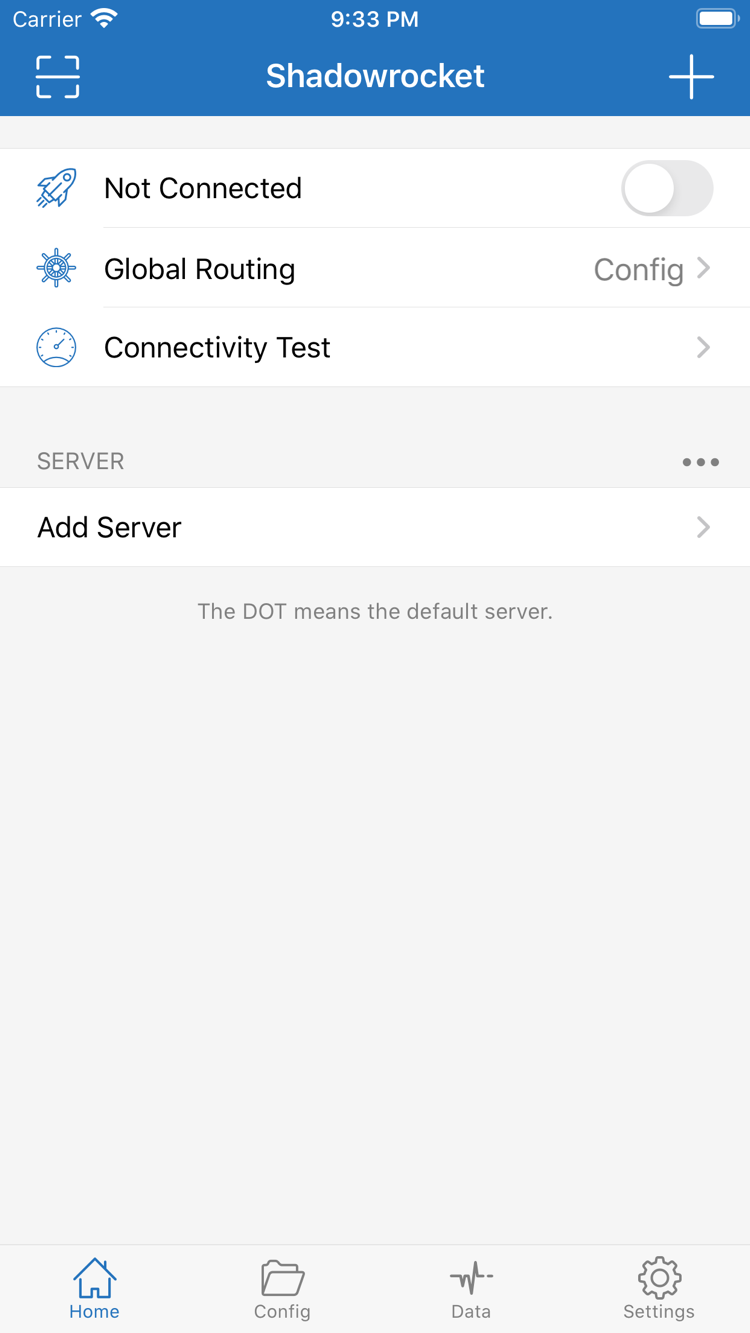
Official Shadowrocket Home screen showing the connection switch, Global Routing and Connectivity Test
Official Shadowrocket Home screen

From subscription import to active rules

First, prepare a subscription or server details from your service provider, then check Global Routing, the current Config and the connection status. The guide follows the operation sequence and identifies checkpoints at each step: a successful import does not confirm a working connection, and an enabled switch does not mean requests are being routed as expected.

Read the step-by-step guide

Shadowrocket configuration and routing

Understand the roles of servers, subscriptions and configuration files before adjusting connection behavior. The guidance below assumes you already have your own subscription or server details. Interface terms remain in English; refer to the client for the current location of each option.

Rule routing

Rules determine which policy handles each request, while server entries determine where a proxy connection goes; check them separately. After selecting Config in Global Routing, start troubleshooting routing with the Rule section of the active configuration. Rules are generally evaluated from top to bottom. Put specific domain or address conditions before broader ones, and use FINAL for requests that did not match earlier rules. Keep a copy of the original configuration before editing, then test with a known domain to check the match result. This helps avoid uncertainty when rules, DNS and server settings are changed at the same time.

See the guide →
DOMAIN-SUFFIX,example.com,PROXY
IP-CIDR,192.168.0.0/16,DIRECT
FINAL,PROXY

On Demand connections

On Demand triggers connection behavior based on network conditions. Configure it after confirming that a manual connection works. Check the relevant option in Settings and set triggers for Wi-Fi, cellular networks or domain conditions. When several conditions apply, verify their evaluation order and default behavior. For the initial setup, enable just one condition, switch networks and confirm the result before adding more. If a connection returns after you turn it off manually, check the On Demand rules before repeatedly deleting servers or importing the subscription again.

See the guide →

Import subscriptions with Subscribe

Subscriptions help maintain server entries in one place. Get the link from your service provider. In Add Server, select Subscribe, enter a recognizable name and the complete link, then save and check the returned entries. Updating a subscription fetches the content published by your service provider; it does not change the Global Routing selection or guarantee that a server is available. If an update fails, first check that the link is complete, the access credentials are valid and your device can reach the subscription address. Subscription links contain access information and should not appear in public screenshots or diagnostic messages.

See the guide →

Config files

A configuration file groups global parameters, rules and other processing settings, but importing a file and enabling it are separate steps. In Config, first check which file is selected, then review General, Rule, Host or the relevant feature section. Section names may vary by format and interface, so use what is displayed in the client. Keep a usable copy before editing, then save and make a new request. If a downloaded file does not produce the expected change, check whether the old file is still active before assuming the rule syntax is invalid.

See the guide →

Diagnostic tools

Connectivity Test and actual web browsing answer different questions. A test shows connectivity under a specified test method; by itself, it cannot confirm that requests from every app are working. During troubleshooting, note the network, selected server and Global Routing mode, then check the matching rule, DNS resolution and connection errors. Test Method in Settings affects the test path, so keep test conditions consistent when comparing results. Change one variable at a time and record what happens when a test fails; this is usually more useful than changing several settings in succession.

See the guide →

Multiple protocols

When selecting Type in Add Server, match the configuration provided by your service provider rather than choosing by name or assumed speed. Shadowsocks, VMess, VLESS, Trojan, HTTP, SOCKS5, WireGuard and Hysteria2 use different authentication, transport and parameter structures. Sharing a server address and port does not make the other fields interchangeable. Check the encryption method, authentication details, TLS and transport parameters one by one. If required information is missing, confirm it with your service provider, then consult the protocol reference to understand each field.

See the guide →
ShadowsocksVMessVLESSTrojanHTTP · SOCKS5WireGuardHysteria2

Settings to check before and after connecting

First determine how requests are routed, then review traffic and save your configuration. Each of these three options has a distinct purpose; they are not interchangeable.

Config / Proxy / Direct modes

In Global Routing, Config handles requests according to the active configuration's rules, Proxy routes requests managed by the client through a proxy, and Direct uses a direct connection. For everyday rule-based routing, select Config, then confirm the active file and server. Proxy can help with comparison during troubleshooting, but you still need to make a new request after switching; existing connections may not change paths immediately. If Proxy works but Config does not, check which rule matches and where its policy points. If both fail, continue by checking the server parameters, network connectivity and resolution results.

View connection check steps →

Shadowrocket downloads for all platforms

Two ways to get Shadowrocket: iPhone / iPad cost $2.99 one-time on the App Store; Mac, Windows, Android and Linux versions are free. Desktop and Android installers are available from this site's download page under /dl/shadowrocket/. Check your system and architecture before reading the first-launch instructions for your platform.

iPhone / iPad

App Store $2.99 one-time; other platforms are free.

Check the app on its App Store product page before downloading. iPhone and iPad can restore purchases using the same purchasing account. Refer to the App Store page for system requirements. To get started, import an existing subscription, then confirm connection permissions when prompted by the system. After changing devices, check the active configuration and server again.

Store and device details →

Mac

Free · Apple Silicon / Intel

Check your chip in About This Mac, then choose the Apple Silicon or Intel version. Each architecture has its own installer. If a developer verification prompt appears on first launch, confirm that the file came from this site, then follow the download page's instructions for allowing it in Privacy & Security.

View Mac versions →

Windows

Free

A 64-bit installer is available. After downloading, check the file source and system architecture. If SmartScreen appears, follow the download page instructions to select More info and, after confirming the source, choose Run anyway. Once installed, import your existing configuration and check server connectivity and actual requests separately.

View Windows version →

Android

Free

An arm64 installer is available. If the system asks you to allow installation of unknown apps, grant temporary permission only to the app used to open the installer, then turn off that permission when finished. If an in-app browser cannot handle the download, open this site's download page in the system browser and read the first-connection instructions.

View Android version →

Linux

Free · deb / rpm / AppImage

Choose deb or rpm to match your distribution's package system, or use AppImage when you need a standalone format. Check the processor architecture and runtime dependencies first. AppImage requires execute permission; package manager installation steps and commands are on the download page. After configuration, verify the connection on your current network.

View Linux version →

View all platforms →

Verify the app, pricing and usage

This is Shadowrocket's official website and manual. Shadowrocket is a closed-source commercial application. Checking the product identity, source and purchase history is more reliable than judging by a name in search results alone.

Developer Shadow Launch Technology Limited App ID 932747118 iPhone / iPad $2.99 one-time; Mac / Windows / Android / Linux free

Check three details in the store

On the App Store product page, check the name Shadowrocket, developer Shadow Launch Technology Limited and App ID 932747118, then compare the app icon with the official icon shown at the top of this site. A similar name or icon is not enough to confirm that a listing is the same product, and its position in search results is not proof. We recommend opening the product page from the download page, then checking device compatibility and the information shown for the current storefront. Do not assume that a listing with a similar name describes Shadowrocket's features.

Desktop and Android users should first confirm that the download page belongs to this site and that the installer URL is under /dl/shadowrocket/. Choose the correct file for Apple Silicon or Intel on Mac, and the right package format on Linux. A file being downloadable does not mean it is suitable for your system. If the system blocks it, verify the source before following the allow-to-open steps for your platform. Do not repeatedly try to open a file from an unclear source.

Store region and system requirements

App Store listings vary by Apple ID storefront, and the product may not appear in the mainland China storefront. If you cannot find it, check your account's region and the product page message, then consult Apple's official process for region changes. Changing regions may affect your balance, subscriptions and payment method. Read the requirements provided by the system before making changes, rather than switching account settings repeatedly just to troubleshoot a search.

For iPhone / iPad system requirements and device compatibility, refer to the App Store product page. Interface terms in this guide help locate options; button positions may change with client or system updates. If the layout differs, look for names such as Subscribe, Config and Global Routing rather than relying only on a screenshot's position.

One-time purchase and restoring purchases

The iPhone / iPad version costs $2.99 as a one-time purchase in the US App Store; the Mac, Windows, Android and Linux versions are free. Other storefronts show local currency, and the purchase confirmation page displays the final amount. iPhone and iPad can use the same purchasing account for purchase history. When restoring, check the account used for the App Store purchase, not only the account currently used for other system services.

After changing devices or downloading again, find Shadowrocket in App Store purchases. If the product page still shows a purchase button, check the account and purchase history before paying again. Getting the client again and restoring configuration are separate steps: purchase history does not restore your service provider's subscription, server parameters or local changes. Check the imported content before connecting.

Updating the client and subscriptions

Manage iPhone / iPad app updates through the App Store. Desktop and Android users can find their platform on this site's download page and download the current installer again. Keep a copy of your configuration and note the active file and server before updating. Afterward, run a simple connection check before resuming regular use. Version information on the page comes dynamically from the download manifest; do not use interface details from an old guide to infer the current version.

Client, subscription and configuration file updates change different things. A client update changes the software; Subscribe refreshes the server list maintained by your service provider; and a configuration file update may change rules and global parameters. Success with one update does not mean the others are complete. When troubleshooting a change, first identify which type of update you performed, then check the corresponding content to avoid unrelated modifications.
App verification and purchase restoration →

Technical notes and configuration references

Once the basic connection works, consult the relevant guide for configuration structure, pricing or protocol parameters. Save the original settings before making changes, understand each field and check that it matches your existing server configuration.

Advanced configuration

Shadowrocket .conf structure: General, Rule, Host and URL Rewrite

Learn the roles of global parameters, rule order, local mappings and request rewriting. Refer to the currently active file to identify the relevant section, then check its syntax and policy target. Adding many rules at once is not a substitute for troubleshooting.

View all articles →